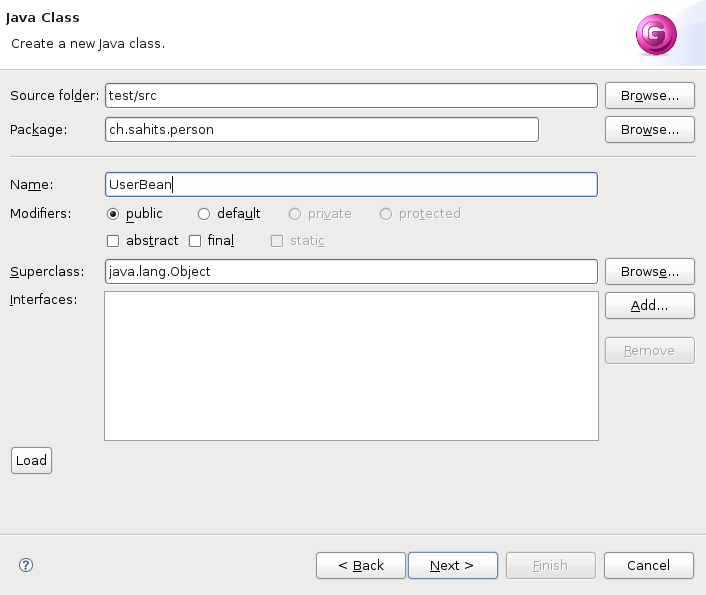
This is the easiest way to generate a class. You start with
calling the wizard File->New->Other...->Java->Java Code
Generation. With the first page of the wizard you may be familiar since
it is basicly identical with the Java class wizard although some
elements are missing that are not needed here. If you had the focus on a
project with a source folder this Source folder is already inserted. The
same is true for the package. Supply the needed elements.
Proceed to the second page with "Next".
On the second page in the first section you specify the way to generate the code. For the generation with a Java Emitter template you can leaf everything as is. Template states that the generation is template based (vs. generated from scratch). Jet in the second row says that the template is a JETemplate. The third row tells something about the input model. With "DB with input file" you specify the input model through an input file.
Now you have to specify the other needed input fields. As an
"Data Input" file we choose the SQL
create script for an USER table. For a template we select the
dbbean.javajet from the drop down. Since the create script is for an
Oracle table we choose the Oracle database product.
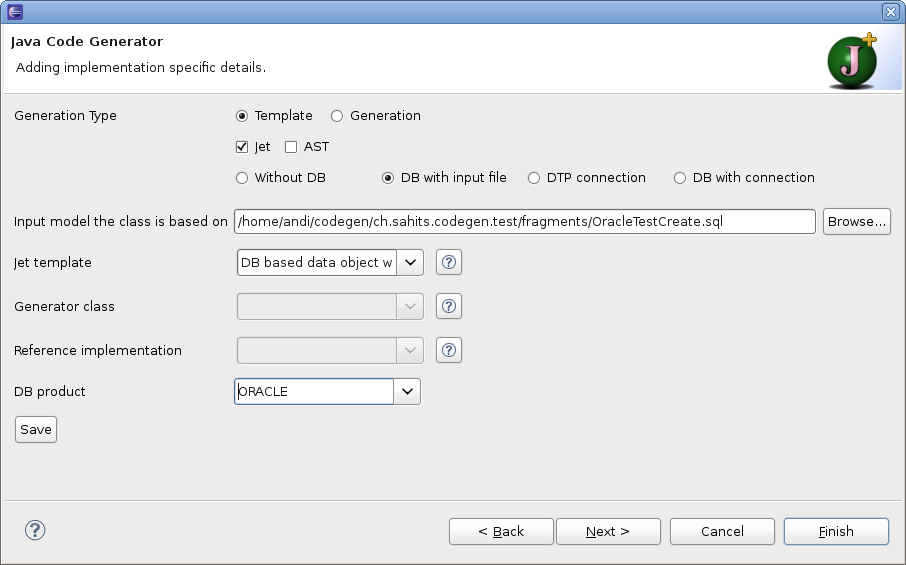
As you choose the option "DB with input file" the third page is basicly optional. Some templates/input model may need the information of the third page. Hit Finish to generate the code.
This produces the following code:
package ch.sahits.person;

import java.sql.Date;
/**
 * This class represents the database table
 * USER.
 */
public class UserBean {

    /** <code>name</code>holds the value of the field NAME */
    private String name;
    /** <code>surname</code> holds the value of the field SURNAME */
    private String surname;
    /** <code>email</code> holds the value of the field EMAIL */
    private String email;
    /** <code>bitrhDate</code> holds the value of the field BITRH_DATE */
    private Date bitrhDate;

    /**
     * Retrieve the value of the field NAME.
     * @return the value of the field
     */
    public String getName(){
        return name;
    }

    /**
     * Set the value of the field NAME.
     * @param name value to be set for NAME
     */
    public void setName(String name){
        this.name = name;
    }

    /**
     * Retrieve the value of the field SURNAME.
     * @return the value of the field
     */
    public String getSurname(){
        return surname;
    }

    /**
     * Set the value of the field SURNAME.
     * @param surname value to be set for SURNAME
     */
    public void setSurname(String surname){
        this.surname = surname;
    }

    /**
     * Retrieve the value of the field EMAIL.
     * @return the value of the field
     */
    public String getEmail(){
        return email;
    }

    /**
     * Set the value of the field EMAIL.
     * @param email value to be set for EMAIL
     */
    public void setEmail(String email){
        this.email = email;
    }

    /**
     * Retrieve the value of the field BITRH_DATE.
     * @return the value of the field
     */
    public Date getBitrhDate(){
        return bitrhDate;
    }

    /**
     * Set the value of the field BITRH_DATE.
     * @param bitrhDate value to be set for BITRH_DATE
     */
    public void setBitrhDate(Date bitrhDate){
        this.bitrhDate = bitrhDate;
    }

}
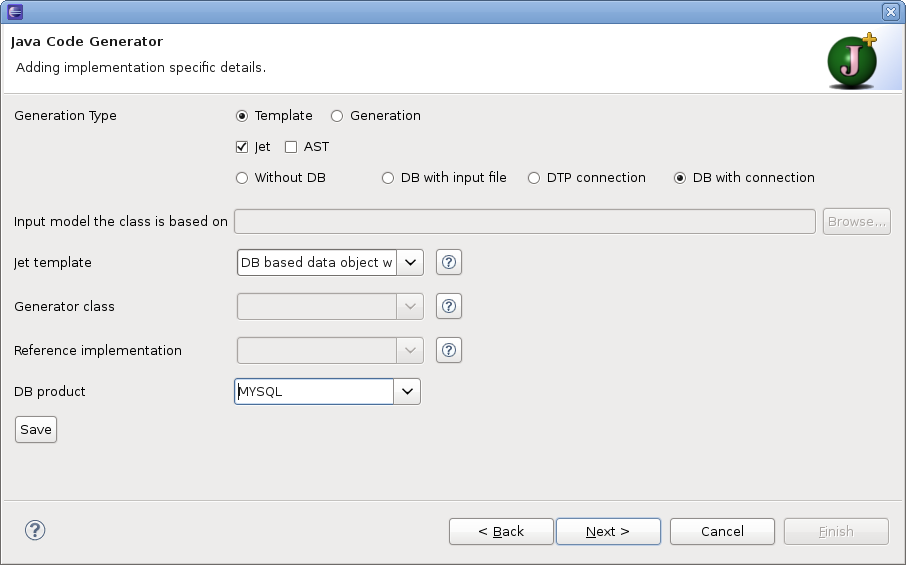
The same result can be achieved (at least if you have the same
structure defined) with option "DB with connection" indicating that the
structural information on the table is retrieved through the database
connection. Now you must not specify a "Data Input" file. The Jet
template and DB product are still needed. Note that for the generation
with a connection only a MySQL database is supported (in version 0.9.3).
Other database products can be added though extension.
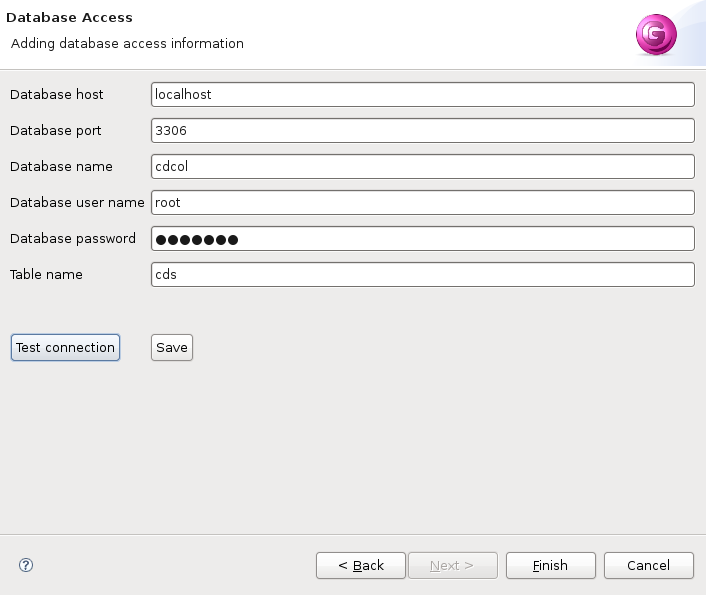
Now you must proceed with Next to the third page to supply the
data needed for the connection. Host, port and user name are already
supplied with sensible values. Add the database name, password and table
name.
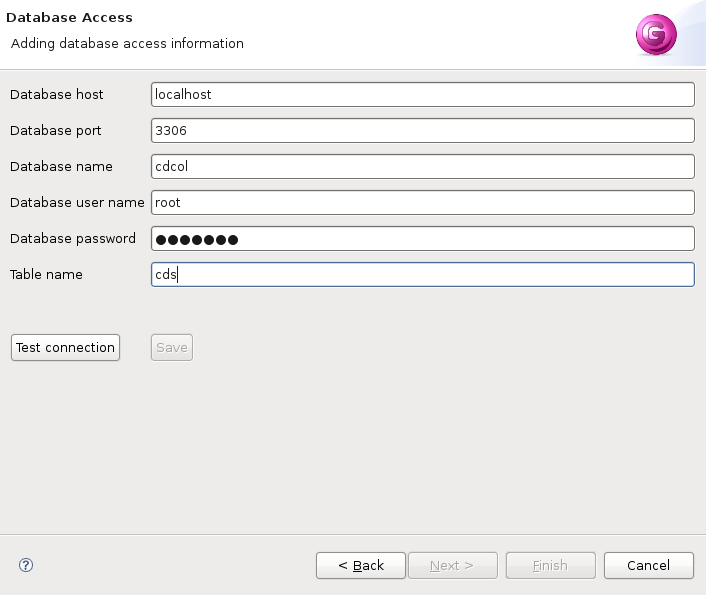
Before you can finish you must verify that the connection data is
valid by hitting the button Test connection.
This Project is hosted at:
Last modified: